
Mantenerlo seguro y al día
Cloudflare
What this page is for: put your project behind Cloudflare, add your Cloudflare account to the panel with one API token, and let the panel set the ~20 Cloudflare options a 6ammart site needs — for the panel, every project and every website on this server.
You need
- Your domain, and the ability to change its nameservers at the company you bought it from (GoDaddy, Namecheap, Hostinger, your local registrar…).
- A free Cloudflare account. The free plan is enough for everything on this page except three items, which the panel marks clearly.
The short version. Add your domain to Cloudflare, open Settings → the Cloudflare tab, press Add a Cloudflare account and paste one API token. The panel finds every Cloudflare site that token can reach and matches each address on this server to the account whose site holds it — you never say what a token is for. Open a site and press Apply recommended settings: the panel reads your Cloudflare settings, changes only the ones that differ from what this server needs, and tells you exactly what it changed, what it left alone and why. After that, a domain you add to the panel, a project or a website is set up by itself.
Connecting the token also changes how the rest of the panel behaves, and this is the part worth doing early: with a token, the panel creates your DNS records for you and gets real certificates by writing a DNS record rather than by serving a file over port 80. Domains and HTTPS stop being a manual step.
The one rule: every record is proxied
Every DNS record this panel creates is proxied — the orange cloud. There is no switch to turn that off, and the panel will never suggest one.
The reason is the whole point of putting Cloudflare there. A record that is not proxied publishes your server's IP address in public DNS, for anyone to read and aim at. Cloudflare then protects the parts of your site that go through it and nothing at all on the parts that do not. Half-proxied is the shape that looks protected and is not.
One consequence follows, and the panel handles it for you:
Cloudflare's free certificate covers your domain and one level below it. example.com and shop.example.com are covered. dash.shop.example.com is not — a proxied name that deep answers every HTTPS connection with a handshake failure at Cloudflare's edge, before your server is even dialled, unless you have bought Cloudflare's advanced certificate product.
So the panel picks names that fit. A name that would sit deeper is written with a hyphen instead of a dot:
| Instead of | The panel uses |
|---|---|
dash.shop.example.com | dash-shop.example.com |
ws.shop.example.com | ws-shop.example.com |
panel.shop.example.com | panel-shop.example.com |
If you type the deeper form by hand, the panel refuses it and shows you the spelling that works. Nothing is ever created unproxied as a way around this.
Your mail records are not web records. MX records and the TXT records that go with them (SPF, DKIM, DMARC) are not proxied by Cloudflare at all — that is how mail works everywhere. The panel never touches them, and neither should you when you move your domain to Cloudflare.
The simplest setup: one Cloudflare account for everything
Recommendation: keep every domain on this server in ONE Cloudflare account.
That single choice decides how much of this page you ever have to read:
| One Cloudflare account | Several Cloudflare accounts | |
|---|---|---|
| API tokens to create | one | one per account |
| Where you paste it | once, under Add a Cloudflare account | once per account, the same way |
| Tokens to renew if they expire | one | one per account |
| Where you look when something is wrong | one place | one per account |
A Cloudflare API token can never see a second Cloudflare account — that is Cloudflare's rule, not the panel's, and there is no permission that gets around it. So a domain in a different account always costs one more token to keep alive. That is fine and fully supported; it is simply more to look after.
Use a second Cloudflare account only when the domain genuinely belongs to somebody else — typically your customer, who wants to own their own domain. If all the domains are yours, put them all in one Cloudflare account.
The Cloudflare tab shows one card per account you added, and on each card what uses it — so you can see at a glance which of the two columns you are in.
Two words you need first: site and token
Everything on this page follows from two rules Cloudflare does not bend.
A Cloudflare "site" (they also call it a zone) is ONE domain. myshop.com is one site. myapp.com is a second site, even if it is the same business. But shop.myshop.com, panel.myshop.com and www.myshop.com are all inside the myshop.com site, because they end with the same domain.
An API token can only ever see ONE Cloudflare account. There is no setting that lets a token reach into a second account. If your project's domain is in your customer's Cloudflare account and your panel's domain is in yours, one token cannot cover both — you need one token in each.
That is why the panel matches by site, and you never choose. You add accounts. The panel reads which Cloudflare sites each one can reach and, for every address on this server, uses the account whose site holds it:
- This panel — the address you open the panel on;
- each project — its admin, website and websocket addresses;
- each website — static, Node.js, PHP or WordPress, every domain it serves.
Each account card lists what it is used by, worked out from those matches — there is nothing to assign and nothing to keep in step. If two accounts you added can both reach the same site (a domain half-way through a move between accounts, say), the panel picks in a fixed order: the token an older version of the panel saved for that very project, then the one saved for the panel, then any other — and a site Cloudflare has finished setting up (Active) always wins over a copy still waiting for its nameservers.
How many tokens do I actually need?
Short answer, in the order of "simplest first":
| Your setup | Cloudflare sites | Tokens |
|---|---|---|
Everything on one domain and its subdomains (example.com, dash-example.com… ) | 1 | 1 |
| Several separate domains, all in one Cloudflare account | one per domain | 1 |
| Domains spread over different Cloudflare accounts | one per domain | one per account — add each one; the panel works out which domains it covers |
- One domain, with everything one level below it, is the cheapest and simplest setup there is: one Cloudflare site, one token, one place to look, and every name inside Cloudflare's free certificate. If you are still choosing your domains, choose this.
- Same Cloudflare account for everything is nearly as simple: your domains are several Cloudflare sites, but one token reaches all of them. Add it once and the panel, every project and every website in those sites use it.
- Separate Cloudflare accounts (for example: the panel is in your account and the shop is in your customer's) needs one token per account. Add the second account the same way — there is no need to say what it is for, because the panel matches the shop's domains to it by site. Removing one account never touches the other, and the panel lists which addresses would lose Cloudflare management before it removes anything.
You do not have to work this out in advance. Add one account, and the panel tells you plainly — by name — which of your addresses no account you added can reach, and what to do about each one. If one project ends up with domains in two accounts, the overview says so as a tip: it works, and one account would simply be one token fewer to look after.
What Cloudflare is
Without it, your domain name points straight at your server. Every visitor — a real customer, a scanner, an attacker — knocks on your server's door directly, and your server's address is written in public DNS for anyone to read.
Cloudflare sits in the middle. Your domain points at Cloudflare, and Cloudflare talks to your server. Visitors never learn where your server is.
That one change buys you five things:
- Your server's address disappears. An attacker cannot aim at an address they cannot find.
- Attack traffic never arrives. Cloudflare absorbs it in their network. Your server never spends a single CPU cycle on it.
- Your photos come from nearby. Cloudflare keeps a copy of your product images and your site's CSS and JavaScript in the data centre closest to each customer. Pages open faster and your server does far less work.
- Free HTTPS at the edge, on top of the certificate this panel installs.
- Certificates without port 80. With the token connected, the panel proves a name is yours by writing a DNS record. That works through the proxy, needs no inbound port, and always produces a real certificate.
Why this server wants it
SixPanel already turns away unknown traffic as cheaply as a server possibly can — an unknown hostname gets its connection closed on port 80 and refused during the handshake on 443 — and it rate-limits floods. But those packets still reach your server: they use your bandwidth, your CPU and your connection limit. A rate limit is a shield, not a wall.
Cloudflare is the wall. It is also the only free way to keep your server's address secret once your domain is public. The health check warns you when a name still points straight at the server.
This does not change your HTTPS. SixPanel keeps issuing and renewing your certificate. Cloudflare adds a second certificate in front, for the part of the trip between the visitor and Cloudflare. You do not have to do anything about certificates on this page.
Add your site to Cloudflare
Do this once, in a browser. It takes about ten minutes plus waiting time.
- Create a free account at cloudflare.com and press Add a site.
- Type your domain without
wwwand withouthttps://— for examplemyshop.com. Choose the Free plan. - Cloudflare reads your current DNS records and shows them to you. Check that the records for your site are there. Add any that are missing.
- Cloudflare gives you two nameserver names. Go to the company where you bought the domain, find the nameserver setting, remove what is there, and put Cloudflare's two names in.
- Wait. Cloudflare emails you when the change is live — usually minutes, sometimes a few hours.
Careful with your email records. If you receive email at this domain, make sure your
MXrecords and anyTXTrecords for mail (SPF, DKIM) came across to Cloudflare. The panel never touches them, and neither should you.
When Cloudflare says the site is Active, come back to the panel.
Create the API token
The token is how the panel changes settings and creates records for you. It is not your password and it is not a Global API Key — never paste either of those anywhere.
A token is a key to your Cloudflare site. Only create it for the domains you want the panel to manage, and delete it in Cloudflare if you ever sell the server.
Create it in the Cloudflare account that holds the domains you are about to manage. A token created in the wrong account verifies happily and then finds nothing — the panel will tell you so, by name, but it saves time to get this right first.
The same list is on the Cloudflare tab in the panel, right above the box you paste into. You do not have to keep this page open while you click through Cloudflare.
The link that takes you straight there
Cloudflare's dashboard has moved this page more than once, and the menu path is the part people lose. This link opens it directly, in whichever account you are signed in to:
Open Cloudflare → Account API tokens
That is Manage Account → Account API tokens. It is the page these instructions and the screenshots below follow.
Create the token in the Cloudflare account that holds the domains you are about to manage. A token made in the wrong account verifies happily and then finds nothing. The panel will tell you so, by name — but it saves a round trip to get this right first.
Then: create it
1. Press Create Token, and name it. Any name you will recognise later; sixpanel-token is fine, and so is SixPanel — myshop.com if you run more than one server. The name is only for you.
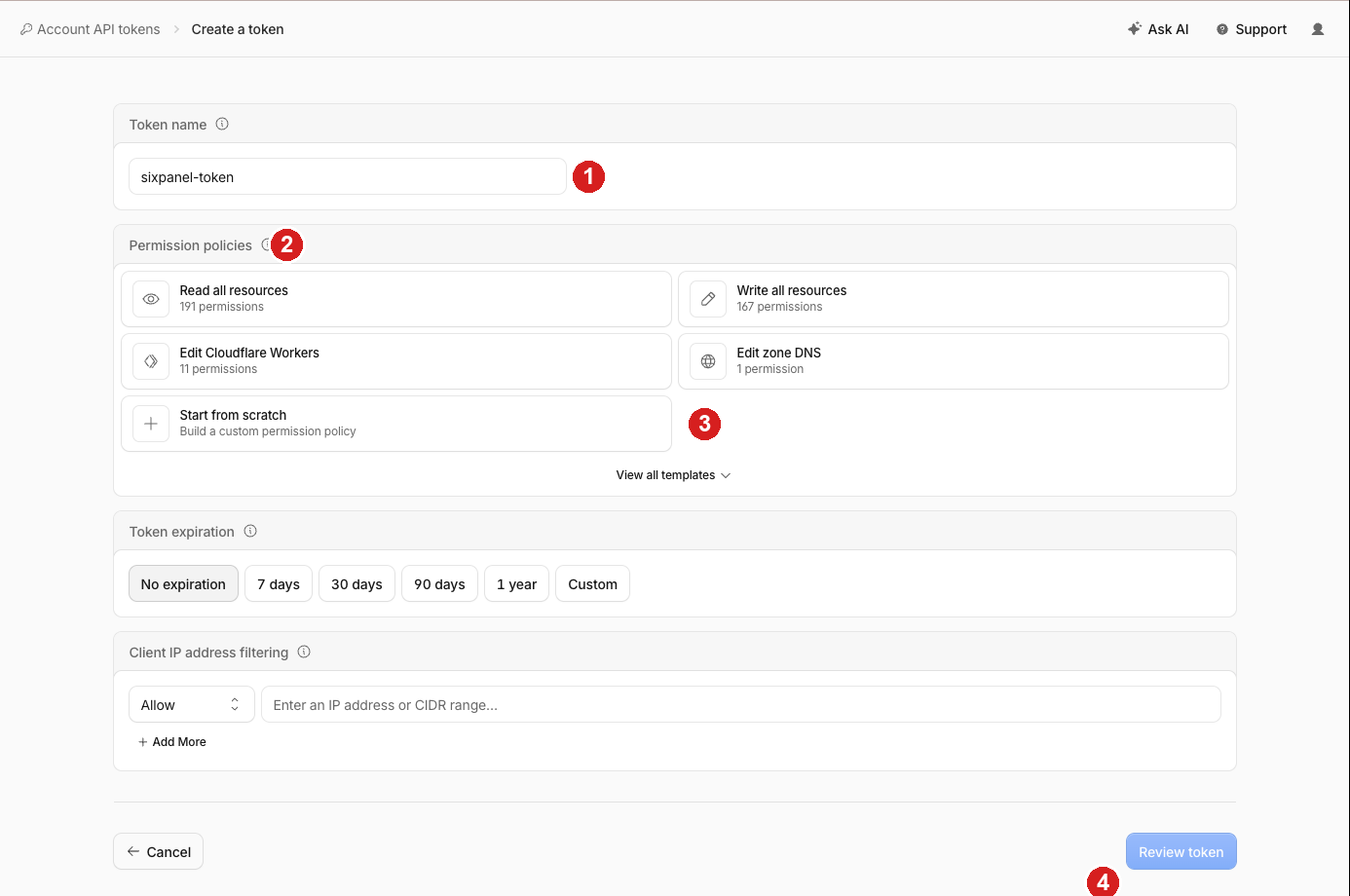
Marker 2 is the Permission policies section. Press Start from scratch (marker 3) — Build a custom permission policy. That is the one to click: the four boxes above it are ready-made templates that do not fit this job, and View all templates below only lists more of them. Marker 4 is the Review token button you press at the end.
2. Set the permissions. In the policy row: leave the first box on Specified Domains (marker 1), pick your domain in the second (marker 2), and set the level on the right to Read & Write (marker 3).
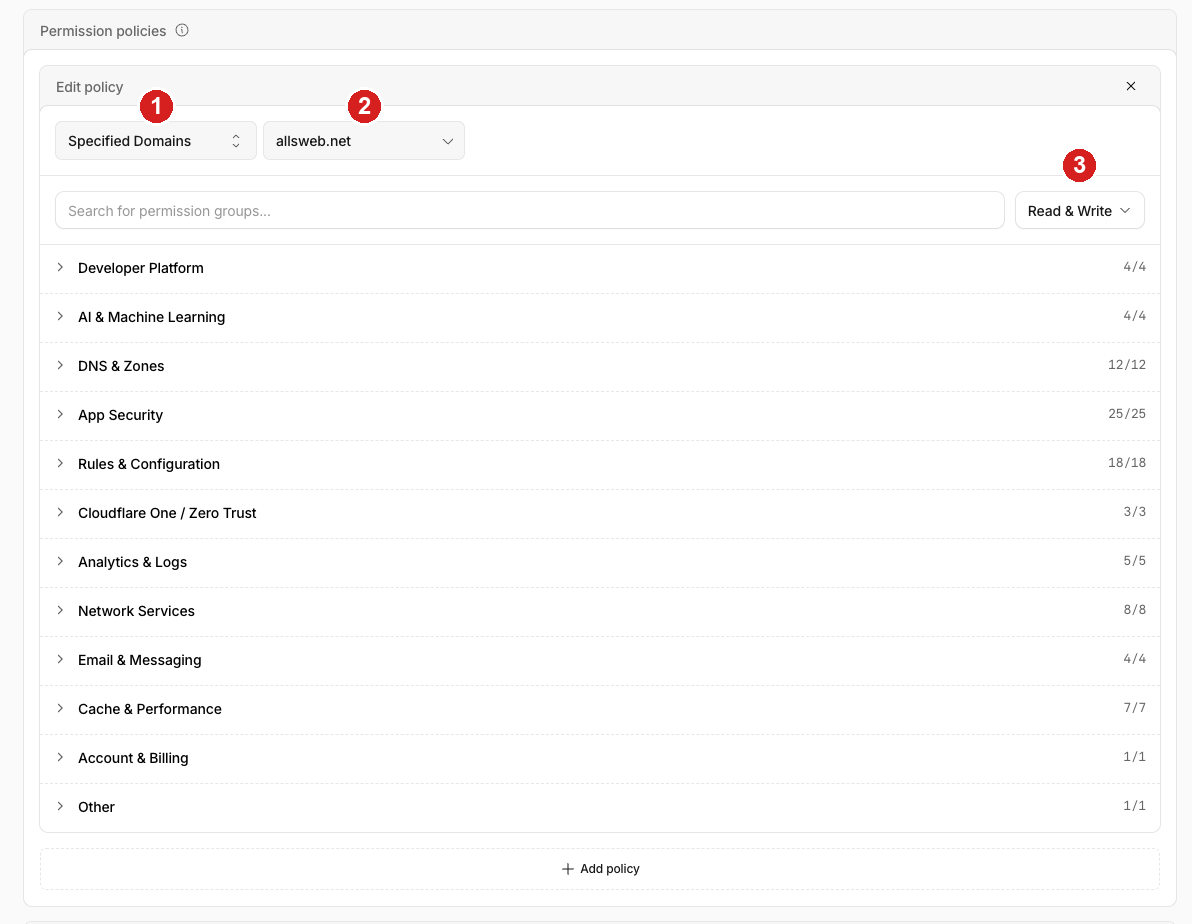
Every group below then shows all of its permissions selected — DNS & Zones 12/12, App Security 25/25, and so on. That is what Read & Write means, and it is the simplest thing that works: the panel gets everything it needs on that one domain, and Cloudflare's occasional renaming of individual permissions can never leave you with a token that is missing one.
If you would rather hand over as little as possible, see *If you want the narrowest possible token* below — it still works, it is just more clicking.
3. Expiry and IP filtering — both optional.
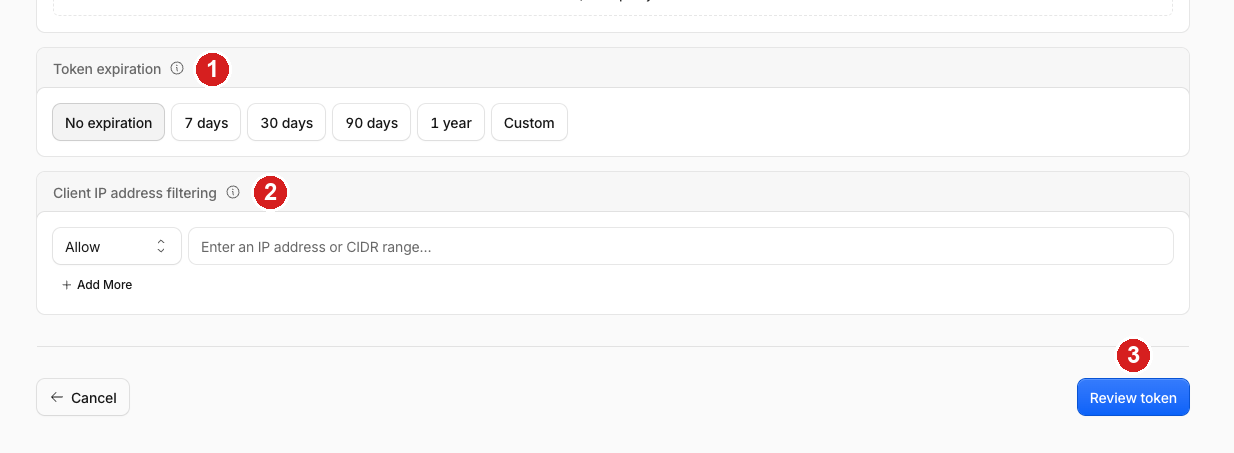
Marker 1, Token expiration: No expiration is the least trouble. An expiry date is supported — the panel stores it, shows it on the Cloudflare tab, and warns you there and on the Health tab two weeks ahead — because the first thing a dead token breaks is the cache purge after a deploy, silently, and your certificate renewals after that.
Marker 2, Client IP address filtering: leave it empty unless you want the extra lock. Putting your server's IP address here means the token is refused from anywhere else, which is worth doing if the token ever leaks. Only do it if you know your server's address will not change — a wrong or stale address here makes every panel request fail with an authentication error, and the reason is not visible from the panel.
Press Review token (marker 3), check the line Cloudflare shows you, then Create Token.
4. Copy both values into the panel. Cloudflare now shows the token once.
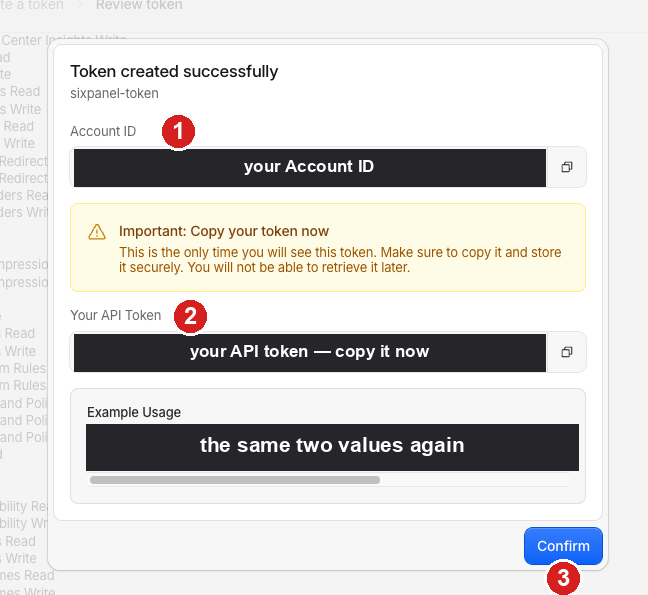
Marker 1 is the Account ID, marker 2 is the API token. Copy them one at a time — the small icon at the right of each box copies it — then in the panel open Settings → the Cloudflare tab, open Add a Cloudflare account, paste both, and press Verify and save. Marker 3, Confirm, closes Cloudflare's dialog; do that after you have pasted, not before.
Both values are needed, and only one of them is a secret. A token made on this page can only be checked against the account it belongs to, so the panel has to be told which account that is. The Account ID is not a password — Cloudflare shows it beside the token and again on the right of your dashboard home page — but the token is, and it is why the panel never displays it again.
The panel checks the token with Cloudflare before storing it, then lists every Cloudflare site it can reach and matches the addresses on this server to them. It answers straight away with what it found — the account's name, its sites and what now uses it — and if one of your addresses is in none of them it says which one and why.
Both values are kept on your own server, readable only by root. The token is never shown again — only its last four characters, so you can tell two apart — and the Account ID is never sent back to your browser either. Each account keeps its own token: removing one never affects another.
If you want the narrowest possible token
Everything above uses Read & Write on one domain, which is the path most people should take. A token scoped to individual permissions also works, and is worth the extra clicking if you want the token to be able to do as little as possible.
Choose Create Custom Token → Get started instead of a template. Each permission line is three boxes: a group on the left, a permission in the middle, a level on the right. Leave the left box on Zone for every line below, use the middle box's search to find the name, and press + Add more for each extra line.
| Middle box | Level | What this one buys you |
|---|---|---|
| Zone | Read | Finds your Cloudflare site and reads which plan it is on. Without this the panel sees nothing at all. |
| Zone Settings | Edit | Every switch on the page: the HTTPS mode, Always Use HTTPS, TLS 1.2/1.3, Brotli, Early Hints, HTTP/3, 0-RTT, security level, ScrapeShield, HSTS and the cipher list. |
| DNS | Edit | Creates your records, keeps them proxied, and adds a watch-only DMARC record when your domain has none. It is also what lets certificates be issued by writing a DNS record instead of over port 80. |
| Cache Rules | Edit | Writes the three 6ammart cache rules — cache /storage and the built CSS/JS hard, keep the service worker fresh, and never cache /api, /admin or anything carrying a login cookie. |
| Cache Purge | Purge | Empties Cloudflare's copy of your files after every deploy, so customers get the new CSS and images instead of yesterday's. |
| Zone WAF | Edit | Writes the payment-callback exemption (the most important rule on the page) and the two rules that block scanner paths like /wp-login.php and /.env. |
| Page Rules | Read | Read only — the panel never writes a Page Rule. It reads them to warn you when an old Page Rule is quietly overriding the cache rules. See the note below. |
| Bot Management | Edit | Bot fight mode. Optional, and off unless you choose it — see the note below. |
Level "Edit" includes reading. You do not add a Read line as well.
Cloudflare renames these entries from time to time. If one is missing, pick the closest match — Zone WAF used to be called Firewall Services, and Cache Rules used to live under Cache Settings. Any permission you leave out simply makes those rows on the panel page say they could not be read. Nothing else breaks, and nothing you already applied is undone. This is the cost of the narrow token, and the reason Read & Write is the recommended path.
Under Zone Resources, choose Include → Specific zone → your domain, and add a line for every domain on this server that lives in this Cloudflare account.
Prefer specific zones over "All zones". All zones is one click less and hands the panel a key to every domain in that Cloudflare account, including ones that have nothing to do with this server. A token scoped to the domains it manages can do nothing else, wherever it ends up.
The other kind of token
Cloudflare has two kinds and they look identical once created. The one this page tells you to make is an Account API token; the older kind, made under your profile menu → API Tokens, is a user token.
| Where you made it | What it is called | Needs an Account ID? |
|---|---|---|
| Manage Account → Account API tokens | an Account API token | yes |
| Your profile menu → API Tokens | a user token | no |
Both work with the panel and both do the same job here. The difference is only in how Cloudflare lets the panel check them: a user token is checked against your user, so it needs no Account ID. If you already have a user token, paste it and leave the Account ID box empty.
Two honest footnotes
Page Rules and account tokens. Cloudflare's Page Rules endpoint refuses account-owned tokens outright, no matter which permissions you gave it. So with an account token that one read always fails, and the panel says so on the zone card instead of pretending it checked and found none. Nothing is unapplied and nothing is broken: it only means that if caching misbehaves, check Cloudflare → Rules → Page Rules by hand, because a Page Rule beats every cache rule on this page. A user token reads them normally. Adding the Page Rules → Read line costs nothing either way.
Bot fight mode. The panel does not switch this on for you. It is one of the four rows you decide yourself, and the reason is specific to this product: Cloudflare cannot aim bot fight mode at part of your site — not from this panel, and not with a rule you add afterwards, because it does not run on the same engine those rules do. A 6ammart server is almost entirely app traffic: every customer, store and rider phone calls the API with a plain HTTP client, and your payment provider confirms a paid order with a machine-to-machine call. Bot fight mode can decide any of those looks automated and ask the caller to run a small piece of JavaScript first — which a phone app and a payment provider cannot do. The call then fails, and the way it fails is orders that stop arriving and paid orders that never confirm. Turn it on only if you will watch your orders afterwards, and turn it straight back off here if they stop.
There is a second, smaller reason it may not switch on at all: on the Free plan Cloudflare often refuses to set this through the API even with the permission granted, and answers with a bare "Bad Request". The panel translates that and points you at the dashboard switch instead: Security → Bots → Bot Fight Mode. On Pro and above the feature is replaced by Super Bot Fight Mode, which is configured in Cloudflare and which the panel reports as such. So the Bot Management line is genuinely optional — everything else on the page works without it.
What the page shows
The Cloudflare tab opens on your accounts. At the top, one verdict line says whether anything needs you: an address no account reaches, a token that expired or is about to, settings waiting to be applied. Under it, one card per Cloudflare account you added — one account, one card; three accounts, three cards. Each card shows:
- the account's name and Account ID, as Cloudflare lists them;
- each token you added for it: the last four characters, whether Cloudflare still accepts it, when the panel last checked, and when it expires — warned two weeks ahead;
- missing permissions, by the names Cloudflare's token editor uses, when Cloudflare refused one of them while the panel read your sites;
- Used by: the panel, each project and each website whose addresses sit in this account's sites. Worked out, never chosen;
- its Cloudflare sites that something here uses, each with its settings state and a Manage button. Sites in the account that nothing on this server uses are folded away underneath, still one click from their own page;
- Refresh from Cloudflare, Replace token (paste a new token from the same account; it takes the old one's place everywhere) and Remove account.
Below the cards: the addresses no added account holds, if there are any; a tip when one project's domains are spread over two accounts; Set up new domains automatically (see below); and Add a Cloudflare account.
Manage opens one Cloudflare site. Its page names the account and plan, says what uses the site, and lists What is different right now — only the rows that do not match. Under that, one card per thing that uses the site: For this panel, For project …, For website …. Each card holds that use's own addresses and rows: its orange-cloud records, and for a project the 6ammart cache, firewall and rate-limit rules. The settings of the whole site — the HTTPS mode, the TLS version, the security level and the rest — are one switch in Cloudflare however many things use the site, so they are listed once, on the first card, and the other cards say where to find them. Advanced closes the page.
The Domain & SSL page — a project's and a website's alike — carries a one-line strip per Cloudflare site: the account, the site, whether its settings are as recommended, and Manage →, which opens that site with the project's or website's own card in view.
Anything no account can reach is listed on its own, naming the address and what to do about it. Nothing on your server is broken when that appears — the panel simply cannot read or change Cloudflare for that address yet.
Apply recommended settings
This is the button to press. It sits at the top of a Cloudflare site's page whenever anything differs from what this server needs, and on each card under it.
- At the top, it covers every use of that site in one run — the panel, the shop and the website on it together. The settings of the whole site are written once.
- On a card, it covers that use only.
What it does, in order:
- Reads your Cloudflare site again, right now. Not a saved copy — the live settings, the live DNS records, the live rules.
- Works out what is different from the recommendation.
- Shows you the list before it does anything: what it will change, in one sentence each, and what it will deliberately leave alone, with the reason.
- Changes only the things that are different. Anything already correct is not touched at all.
- Empties Cloudflare's copy of your site afterwards, but only if it changed something that affects caching — and on a shared site, only the addresses of the use it changed.
- Prints a report as the last line of the job: what it changed, what it could not change and why, and what it skipped on purpose.
It never touches anything you created by hand in the Cloudflare dashboard.
Three kinds of thing are always left alone by this button, and it says so:
- settings your Cloudflare plan does not include,
- the four rows marked "Read before turning this on" (HSTS, bot fight mode, hotlink protection and the cipher list) — those are decisions, so you make them one at a time,
- any row you told the panel to keep (see below).
There is also a Re-write every setting button on each card, tucked behind a small heading. It writes everything again, including the settings that already match. You will almost never need it — use it only if you suspect Cloudflare did not save something.
Sync works in both directions
Every row on the page is compared with the recommendation each time you open it. When one does not match, you have two honest answers, and the page gives you a button for each:
"Fix this" — take the recommendation. The panel changes that one setting on that one Cloudflare site.
"Keep Cloudflare's value" — the other direction. You looked at the row and decided the value in Cloudflare is the one you want here. The panel:
- sends nothing to Cloudflare,
- remembers that this value is your choice,
- stops counting the row as work — the verdict at the top no longer nags,
- and never changes it in Apply recommended settings.
A kept value is still watched, not ignored. If somebody changes that setting in Cloudflare again later, the row goes back to saying changed in Cloudflare, because your choice no longer describes what is live. Press Use the recommendation on a kept row to undo it.
Think twice before keeping your own version of the two rules rows. They carry the rule that lets your payment provider's callbacks through and the rule that stops signed-in pages being cached. The panel warns you before it accepts a keep on those.
Set the site up in Cloudflare yourself, before the panel? Press Read this site's settings in on that use's card. The panel reads the site fresh, lists every value it is about to take as your choice, and keeps them all in one go once you confirm — the same as pressing Keep Cloudflare's value on each row. The orange cloud is the one exception: it only ever goes one way.
New domains are set up automatically
When the panel, a project or a website gets a new address, the panel finds the account whose Cloudflare site holds it and applies the recommended settings by itself — a few minutes later, as a job you can watch in the log:
- a Cloudflare site nothing here used before gets the full recommended set, exactly as Apply recommended settings would write it;
- a new address in a site something already uses gets only that address's own rows — its orange-cloud record and, for a project, the 6ammart rules. The settings of the whole site are left as they are, because somebody may have chosen them on purpose.
It never applies a row marked Read before turning this on, never one you kept, and never one that changes this server rather than Cloudflare. The very first run after the panel is updated only takes note of the addresses that already exist — nothing you set up before is rewritten. Switch it off under Set up new domains automatically on the accounts page; new addresses then wait for you to press the button.
Advanced
Each site's page ends with an Advanced fold, for switches of the whole site that are not part of the recommendation:
- Development mode — Cloudflare stops caching and serves everything fresh from your server for three hours, then switches itself off. The fold shows the minutes left, and Turn off now ends it early.
- Cache level — how much of an address Cloudflare uses to tell its copies apart. Standard suits almost every site.
- Empty everything on this Cloudflare site — Cloudflare's whole copy, for every address on the site. The confirmation names everything else that uses the site first.
- Rules Cloudflare runs on this site — every custom firewall, rate-limit and cache rule, each marked written by the panel or yours. Read-only: change your own in the Cloudflare dashboard, and the panel keeps them, in your order.
What the panel does for you
Each card shows one row per setting: what Cloudflare says now, what this server recommends, why it matters in plain words, what pressing Fix would do, and a switch. A short What is different right now card near the top lists only the rows that do not match, so you never have to scroll past twenty healthy rows to find the one that is wrong.
The big ones:
- The orange cloud on your website records. This is the one that hides your server.
A,AAAAandCNAMErecords are all handled — if your storefront address is aCNAMEpointing at your admin address, which is a normal way to set up subdomains, the panel follows it and switches it too. Records it does not touch are named with the reason: your mail records (Cloudflare's proxy does not apply to mail at all), the panel's own address, any record that points at a different machine, and any record Cloudflare itself refuses to proxy. If you moved your storefront or your websocket address to another server, the panel leaves that record alone and tells you why on the row. - Cache rules for 6ammart. The most valuable item on the page. Product photos, uploads and built CSS/JS are cached hard at Cloudflare; the API,
/admin,/vendor(on 6ammart that is the store sign-up funnel, not a folder), login and anything carrying a session cookie are marked never-cache. Both halves matter: caching without the second rule could show one customer another customer's screen. - A skip rule for your payment provider's callbacks. After a customer pays, the payment company calls your server back to confirm the order. That call comes from a machine, not a browser, so a security check can quietly eat it — and the customer's money is taken while the order stays unpaid. The panel adds a rule that lets those callback addresses through, and pins it first so none of the other rules can reach them. Your app still checks every callback's signature, and nothing on those addresses is ever cached.
- Encryption between Cloudflare and your server. The panel looks at the certificate your server actually holds and picks Full (Strict) or Full accordingly. With the token connected the answer is normally Full (Strict), because the panel then issues a real certificate.
- Always use HTTPS, TLS 1.2 minimum, TLS 1.3, 0-RTT off — the safe TLS set.
- Brotli, HTTP/3, early hints — free speed.
- WebSockets on — live order updates travel over the same 443, through the proxy.
- Security level, browser integrity check, and a small blocking ruleset for paths like
/wp-login.php,/.envand/phpmyadminthat no real customer ever asks for. - Scrape Shield — hides email addresses on your pages from spam harvesters.
- DMARC — if your domain has no
_dmarcrecord at all, the panel adds a watch-only one. It never edits a record you already have.
Four rows are marked "Read before turning this on" and are skipped by Set this up for me. Each carries the warning that explains what it can cost, and the report at the end of the bulk run names them so you know they are waiting:
- HSTS is hard to undo. Once a browser has seen it, it refuses plain http for your domain for six months even if you switch HSTS off. Turn it on only when HTTPS works on every one of your names.
- Bot fight mode cannot be aimed at part of your site, so it also sees the calls your customer, store and rider apps make and the call your payment provider makes to confirm a paid order. See the footnote above before you switch it on.
- Hotlink protection blocks images requested by other websites. If your storefront runs on a domain in a different Cloudflare site, its product photos will stop loading.
- Cipher list deletes the list of ciphers pinned on your Cloudflare site and goes back to Cloudflare's own maintained one. That is the right answer for a list copied from a blog post years ago, and the wrong one if somebody pinned it on purpose — the panel keeps no copy of the old list. Write it down first if you are not sure.
Your own rules are safe. If you added Cache Rules or WAF rules in the Cloudflare dashboard, the panel keeps them exactly as they are. It only writes rules whose description starts with sixpanel:.
If you change something in Cloudflare by hand, the panel notices. That row turns orange and says changed in Cloudflare. It never quietly puts your change back. You then have three options and the row shows all three: press Fix this to take the recommendation, press Keep Cloudflare's value to tell the panel your version is the right one here, or leave it and decide later. Press Refresh from Cloudflare any time to re-read everything.
That check also watches the order of your rules, not only their contents. A rule you dragged above the payment-callback skip in the Cloudflare dashboard would otherwise be invisible here, and it is exactly the change that stops orders confirming.
Empty Cloudflare's copy does exactly that: Cloudflare throws away the copies it holds and fetches fresh ones. Use it when you replaced a logo or a banner and still see the old one. It empties every Cloudflare site of the project you are looking at, and nobody else's. The panel also does this automatically at the end of a deploy, so a new version of your CSS is never served from an old copy.
Cloudflare plans. Three items — tiered cache, Polish and Mirage — need a paid Cloudflare plan. On a free plan the panel shows them greyed out with the reason and never tries them. Nothing is broken; you are simply not paying for them.
A Cloudflare site with no project on it. If your panel is on a domain of its own, that Cloudflare site still gets every HTTPS, speed and security setting — but the two 6ammart rule sets (the cache rules and the payment-callback and attack-path rules) are greyed out with the reason, because they describe addresses like /storage/, /payment/ and /admin that only exist where a project runs. The rows stay visible so you can see they were considered.
What stays manual
The panel does not, and should not, do these:
- Changing your nameservers at your registrar. Only you can do that.
- Buying a Cloudflare plan.
- Deleting old Page Rules. Page Rules are Cloudflare's older system and they win over cache rules. If the page says some are active and your caching behaves strangely, look at them in the Cloudflare dashboard.
- Super Bot Fight Mode on paid plans — it is configured in Cloudflare.
- Tightening DMARC from watch-only to quarantine or reject. Do that yourself, after reading a few weeks of reports, and only with your mail provider's advice.
- Your provider's firewall. That is the firewall page — the two work together: Cloudflare in front, and your provider dropping everything that did not come from Cloudflare.
Subdomains
A project that serves dash-myshop.com, myshop.com and ws-myshop.com is one Cloudflare site, not three. They all end with myshop.com, so Cloudflare keeps them together and so does the panel:
- One card, not three, listing all the addresses.
- One token covers all of them.
- The orange cloud row counts every one of those records — whether they are
Arecords orCNAMErecords pointing at each other. - The cache rules and the payment and attack rules apply to the whole Cloudflare site, which is exactly right: all the addresses are the same project.
- Empty Cloudflare's copy empties all of them.
This is the simplest layout there is, and it is also the shape the panel suggests when you create a project from one domain. If you are still choosing your addresses, choose this one.
Two different projects on one domain (project A on shop-mydomain.com, project B on store-mydomain.com) — or a project and a website — is also one Cloudflare site, and the panel handles it carefully:
- each project writes its own copy of the cache and firewall rules, matching only its own addresses;
- writing one project's rules never removes the other project's — the page says so on the row;
- Empty Cloudflare's copy on one project empties only that project's addresses and leaves the neighbour's cache alone;
- a website on the same domain never gets the shop's rules, and the shop's rules are narrowed so they never reach the website's addresses — a WordPress site keeps its
/wp-admin; - the site's page lists the HTTPS, speed and security rows for the whole site once, on the first card (the panel's, when the panel shares the domain), and leaves the two 6ammart rule rows to whichever project actually runs the shop.
What the page can tell you, and what to do about it
Every state below produces a plain sentence on the page rather than an error. This is the complete list.
| What is going on | What the page says | What to do |
|---|---|---|
| The domain is not in any account you added | listed under Domains no added account holds, naming the address | add the Cloudflare account that holds it, or add the domain to Cloudflare |
| The domain is not on Cloudflare at all | "its nameservers are somebody else's" | add the site to Cloudflare, change the nameservers, wait for Active |
| The domain does not exist yet | "does not resolve anywhere yet" | register it and set up its DNS first |
| Cloudflare is paused for the site | a clear note: traffic goes straight to your server, nothing is cached or filtered | un-pause it in Cloudflare → Overview. Settings still save while paused |
| The nameserver change is not finished (pending) | "Cloudflare is waiting for the nameserver change" | finish it at your registrar, then press Refresh |
| Development Mode is on | says caching is deliberately off for the next N minutes | wait, or switch it off in Cloudflare → Caching. Your cache rules are fine |
| The site is a partial (CNAME) setup | says so, and that the orange cloud cannot be switched from here | a full setup (Cloudflare nameservers) is simpler if you can |
| Your Cloudflare plan is too low for a row | greyed out, names the plan needed | nothing — it is skipped, never attempted |
| A record points at a different machine | greyed with the address it points at | fix the DNS record, or leave it if that is on purpose |
| Cloudflare will not proxy a record | greyed, "Cloudflare does not offer the orange cloud for this" | usually a partial-setup site |
| A name is deeper than one level below the domain | refused, with the hyphenated spelling that works | use the name the panel offers |
| A rule you wrote sits in the same phase | kept, in your order — and if one moved above the payment skip or below the never-cache rule, the row says so | press Fix this to put ours back in place; yours keep their order |
| The token expired or was deleted | says the token is no longer accepted, not that Cloudflare is down | create a new token and paste it |
| The token expires soon | warns 14 days ahead, on this page and on the Health tab | make a new one now; a token with no expiry never needs this |
| The token lacks a permission | the account card lists the missing permissions by the names Cloudflare's token editor uses | edit the token in Cloudflare and add them, then press Refresh |
| One project's domains are in two accounts | a tip on the accounts page | nothing — it works. Moving them into one account leaves one token to look after |
| You press Remove account | lists every address that would lose Cloudflare management first — or says another account you added holds the same sites | confirm, or cancel and keep it |
| You pasted an account token with no Account ID | asks for the Account ID and opens the box — it does not call your token invalid | paste the 32-character Account ID shown beside the token |
| The old Page Rules could not be read | says so on the site's card, and why | nothing, unless caching misbehaves — then check Cloudflare → Rules → Page Rules by hand |
| Bot fight mode will not switch on after you chose it | the panel names the Free-plan API refusal and points at the dashboard | switch it on in Cloudflare → Security → Bots, and watch your orders afterwards |
| No project runs on that Cloudflare site | the two 6ammart rule rows are greyed with the reason | nothing — everything else still applies |
| The payment-callback rule is missing and you try to switch on Security level or Browser integrity check | the panel refuses and names the addresses that are unprotected | apply the payment-callback row first. Those two settings apply to your whole Cloudflare site, and without the exemption a customer can pay and the order never confirms |
If something looks wrong
An address is listed under "Domains no added account holds". Your tokens are valid, but none of them can see that domain. There are only three causes, and they are worth checking in this order:
- The domain has not been added to Cloudflare yet — do the Add your site to Cloudflare steps above.
- The domain is in a Cloudflare account you have not added. A token never crosses accounts. Create a token in the account that holds the domain and add it with Add a Cloudflare account — the panel matches the domain to it by itself.
- The token's Zone Resources list is missing that domain. Edit the token in Cloudflare and add it, then press Refresh from Cloudflare — or make a new token and press Replace token on that account's card.
"This looks like an account token…". Your token is fine. It was made under Manage Account → Account API tokens, and Cloudflare will only confirm that kind against the account it belongs to. The panel opens the Account ID box for you and puts the cursor in it — paste the 32-character Account ID from the same Cloudflare page and press the button again. Do not create a new token; the one you have is correct.
A project appears under "Used by" on the same card as the panel. That is normal and nothing to fix: the project's domains are in a Cloudflare site that account holds, so the panel uses that account for them. You add another account only when a domain lives in a different Cloudflare account.
Visitors see error 526. The encryption mode is Full (Strict) but your server's certificate is one the server signed itself. Either set that row back to Full, or — better — press Get free SSL again on the Domain & SSL page now that a token is connected, and the panel issues a real certificate.
Visitors see error 521 or 522. Cloudflare cannot reach your server. Your provider's firewall is blocking Cloudflare, or the server is down. Check the firewall page and the project's services.
Visitors see an HTTPS handshake error on one name only. That name is more than one level below your domain, where Cloudflare's free certificate does not reach. Use the hyphenated spelling the panel offers — the panel refuses to create such a name for exactly this reason, so this only happens to a record somebody added by hand.
A page shows old content. Press Empty Cloudflare's copy.
Someone is logged in as someone else. Stop and check the cache rules row — the never-cache rule must be present. Press Fix this on that row, then empty the cache. The panel writes that rule after any cache rule you added yourself, and the caching rule it writes also refuses to touch anything with a login cookie, so this needs two things to go wrong at once — but check it anyway.
Your payment provider's callback stopped arriving. Orders are paid but stay unconfirmed. The panel already writes a rule that lets the callback addresses through ahead of every other rule, so first open the shop's Cloudflare site and look for the changed in Cloudflare mark on the rules row — a rule dragged above the skip in the Cloudflare dashboard is the usual cause, and the panel flags it by name.
If your provider calls back on an address 6ammart does not use, add a Skip rule for that path yourself in Cloudflare → Security → WAF → Custom rules, and put it above the others. Rules you add there are kept by the panel. Switching Browser integrity check off is a way to test the theory, not a fix to leave in place.
The panel says the token is no longer accepted. Somebody deleted it in Cloudflare, or it reached its expiry date. Nothing on Cloudflare changed and your site is unaffected — but the panel can no longer read or write Cloudflare, so it stops emptying the cache after a deploy and, more seriously, it can no longer prove your names for certificate renewal that way. Create a new API token in the same Cloudflare account and press Replace token on that account's card. The Health tab watches for this and warns you two weeks before an expiry date.
Remove an account whenever you want. The panel first lists every address that would lose Cloudflare management — or tells you another account you added holds the same sites — and only then removes it. Nothing on Cloudflare changes; for those addresses the panel just stops reading and setting anything, and falls back to proving names over port 80 for certificates.
¿Algo no está claro?Pregúntale a Tia